Importing from CSV
Backfill your timeline with historical events from a spreadsheet using the four-step import wizard.
A logbook is far more useful when it starts with history instead of a blank page. If you've kept a record of past launches, incidents, or campaigns in a spreadsheet, the CSV importer brings them in.
The wizard
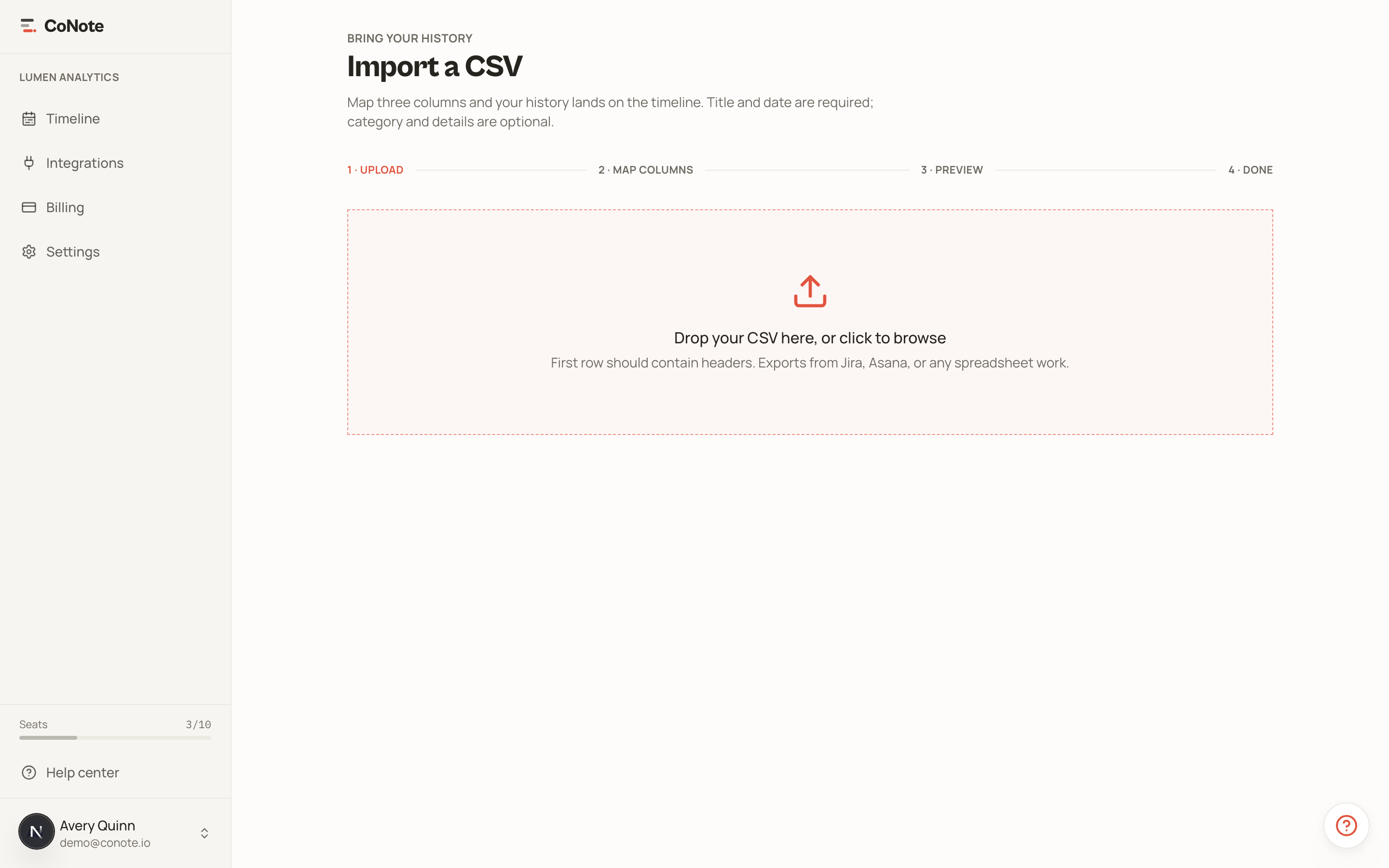
Importing runs through four steps:
Upload your file
Export your records as a CSV and upload it. Each row becomes one note.
Map the columns
CoNote auto-detects common headers (date, title, category) and matches them to note fields. Adjust any mapping it didn't get right.
Review
Preview how your rows will look as notes before anything is written, so you can catch a mis-mapped column early. Dates show as CoNote reads them, next to what your file says.
Import
Confirm, and the notes land on your timeline, dated to their original event dates.
Preparing your file
For the cleanest import, give each row at least a title, an event date, and a category. Dates should be real event dates — the importer places notes in history where they belong, not at today's date.
Date formats
CoNote reads year-first dates (2026-12-31), written-out dates (Dec 31, 2026) and numeric
dates with slashes, dots or dashes (31/12/2026, 31.12.2026). Numeric dates can mean two
things: 10/02/2026 is February 10 in most of Europe and October 2 in the US. CoNote checks
your file for a date that settles it (like 13/02/2026, which can only be day first) and
picks the order for you. If every date works both ways, the preview step asks: choose
Day first or Month first and check the dates in the preview before you import.
Rows with a date CoNote can't read are listed after the import and skipped, so nothing lands on the wrong day.
Imported notes carry a "CSV import" source label, so you can always tell backfilled history apart from events captured live.
Importing counts toward your plan's note limit. If you're on the Free plan and importing a large history, you may hit the 100-note cap — see plans and seats.